Set up your organisation, invite your team, and run full systems engineering — requirements, FMEA, tests, project management, and software — for your program, like a pro.
Go to app.nirmiq.com and create an account with your email and an organisation name.
Log in. You land on your dashboard — explore a sample project, or create your first project.
From the Admin panel, invite your team members by email.
Start adding requirements, run FMEA, write tests, plan sprints — full systems engineering, in one place.
The rest of this guide goes deeper on each step. Skim the headings, jump to what you need.
How the pieces fit together — Requirements sits at the centre; Architecture allocates to it, FMEA analyses its risks, Tests verify it, Work Items deliver it. Traceability is the overlay view that lets you audit the whole picture at once.
1
Create Your Account
Sign up at nirmiq.com
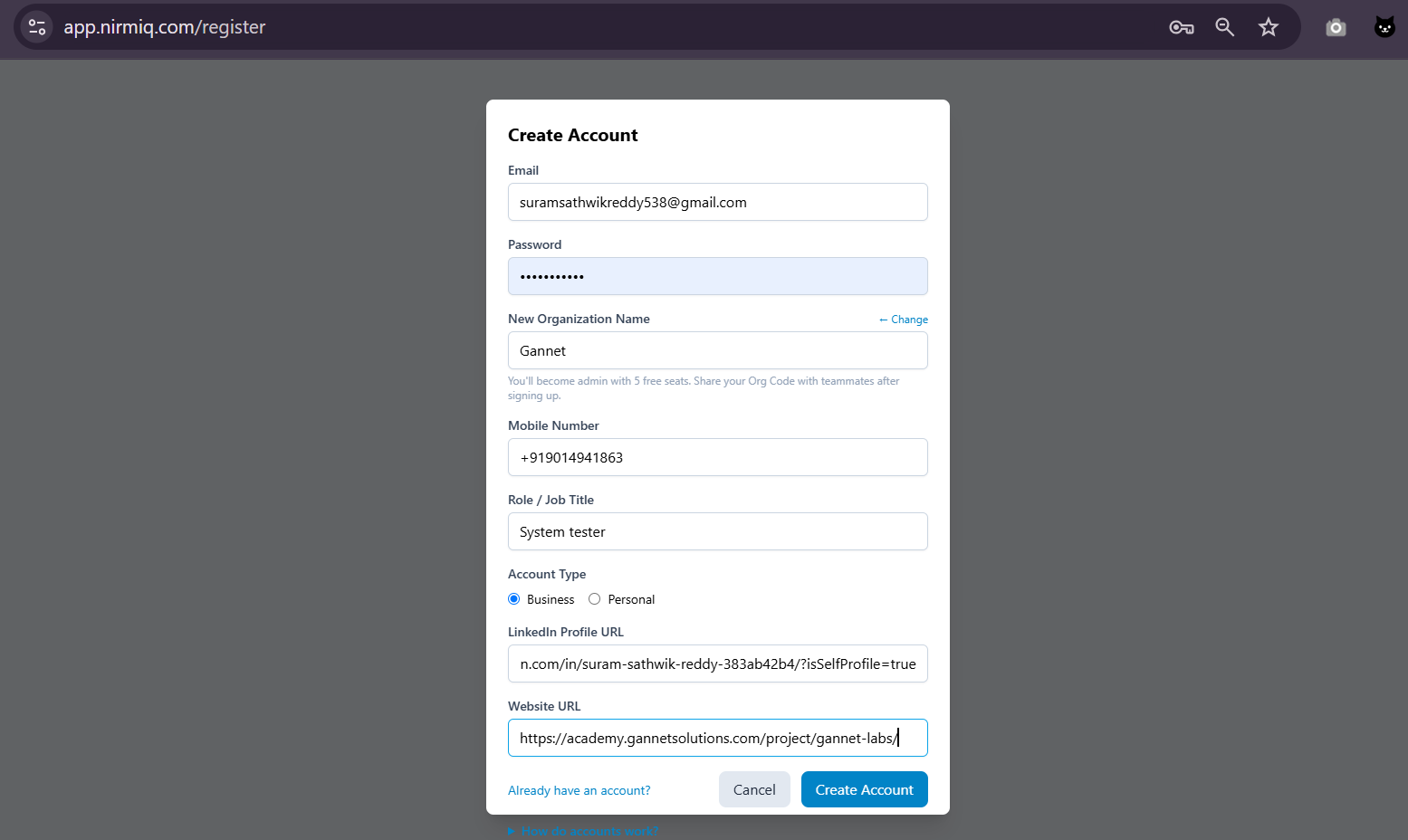
Head to app.nirmiq.com and click Sign Up. You'll need:
A valid email address (this becomes your login)
Your full name
A password (minimum 8 characters)
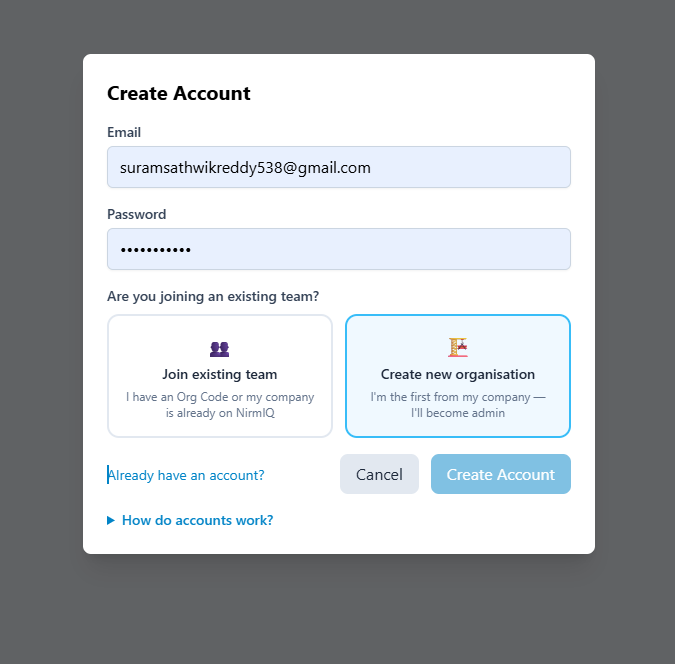
The NirmIQ sign-up page
Create or Join an Organisation
After signing up you'll either:
Create a new organisation — you automatically become the first Admin of the organisation and get 5 free seats.
Accept an invite — if a colleague already set up an org, click the invite link in your email to join.
Create your organisation — you become the first Admin and get 5 free seats
Good to know
Every new organisation starts on the FREE plan with 5 seats — no credit card required.
2
Your First Login & Dashboard Tour
The Dashboard
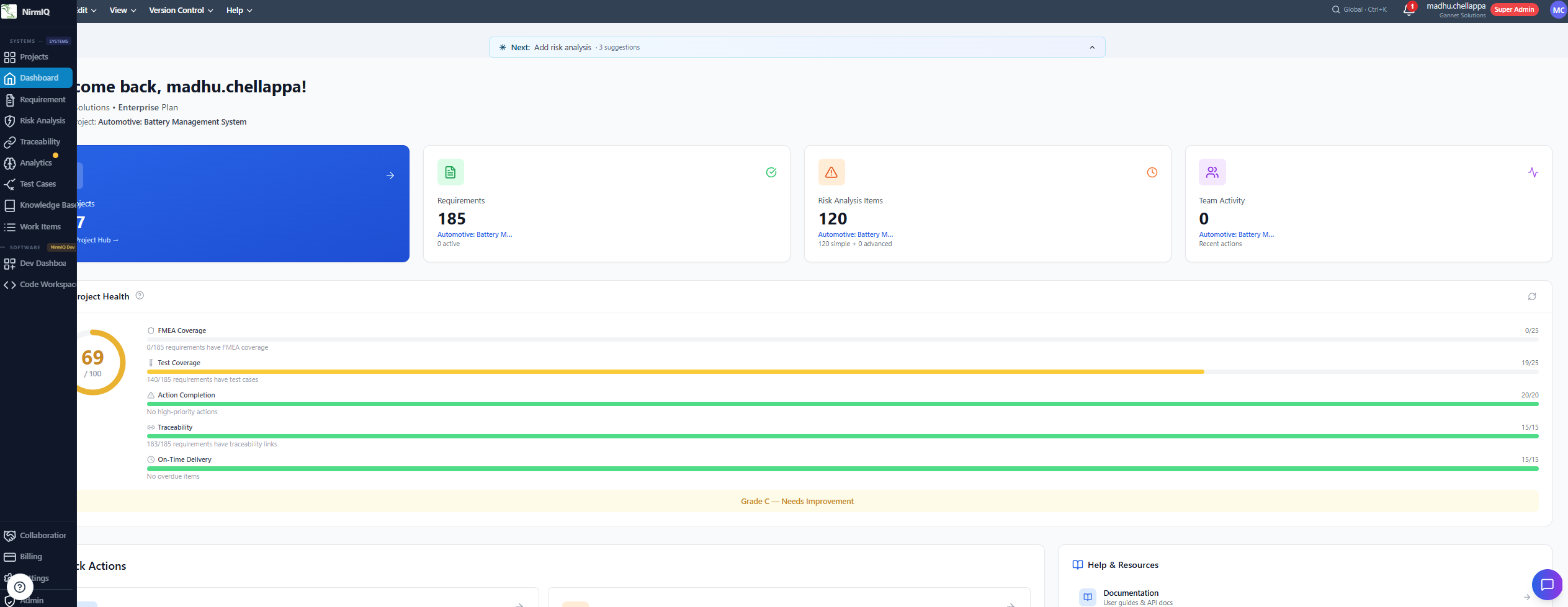
After logging in you land on the Dashboard. Here's what you'll see:
Left sidebar — navigate between Projects, FMEA, Analytics, Settings, and more
Project list — your projects plus any Sample Projects for exploration
Quick actions — create a new project, import requirements, run AI analysis
Your NirmIQ dashboard — the command centre for all your projects
Explore the Sample Projects
NirmIQ ships with five pre-loaded sample projects so you can explore every feature before creating your own data. These are read-only and won't affect your seat count.
Medical Device — Automated Insulin Delivery System (185 requirements, 120 failure modes)
Aerospace — Flight Control System (185 requirements, 120 failure modes)
Automotive — Battery Management System (BMS)
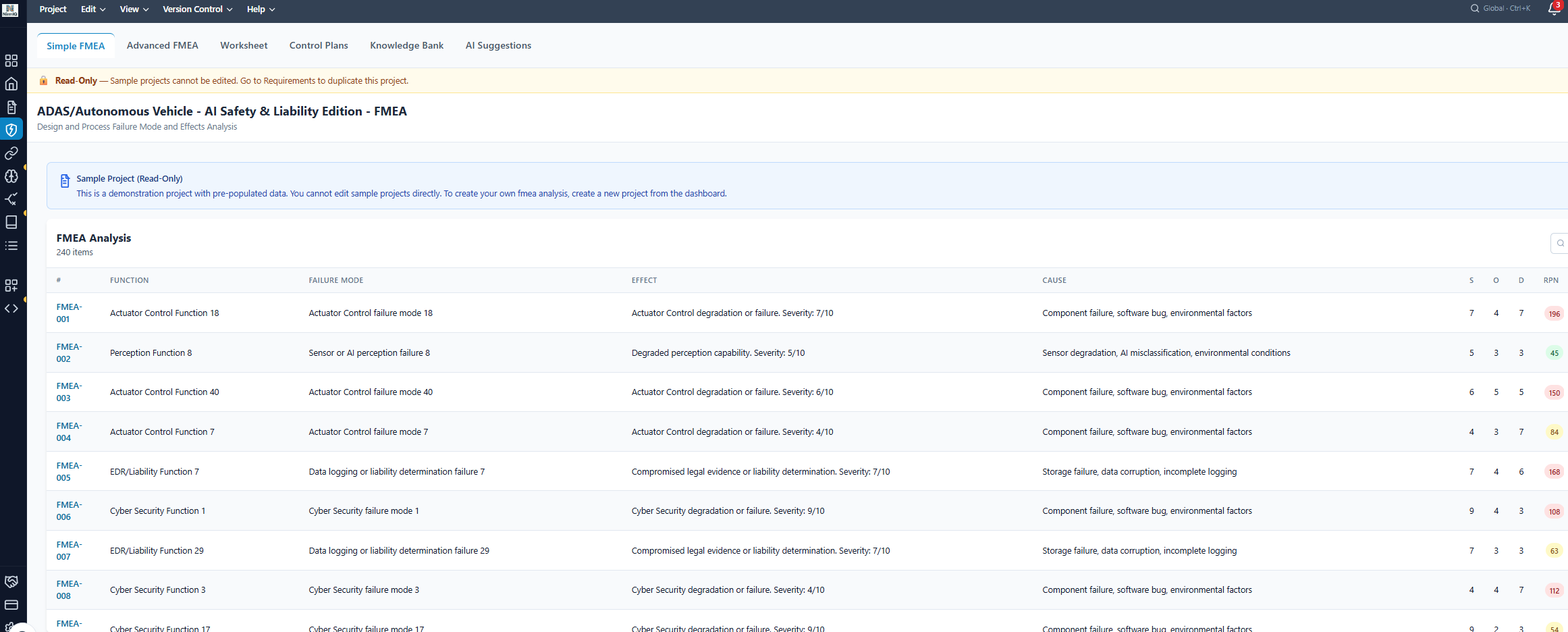
Commercial Aviation — Next-Generation Narrow-Body Aircraft (large, 370 requirements, 240 failure modes; demonstrates lessons from Boeing 737 MAX MCAS)
ADAS / Autonomous Vehicle — AI Safety & Liability Edition (large, 370 requirements, 240 failure modes; references real Tesla, Uber, Cruise, and Waymo incidents)
3
Invite Team Members
Go to Organisation Settings
Click your organisation name in the sidebar, then navigate to Members.
The Members page in your Admin panel
Send Invitations
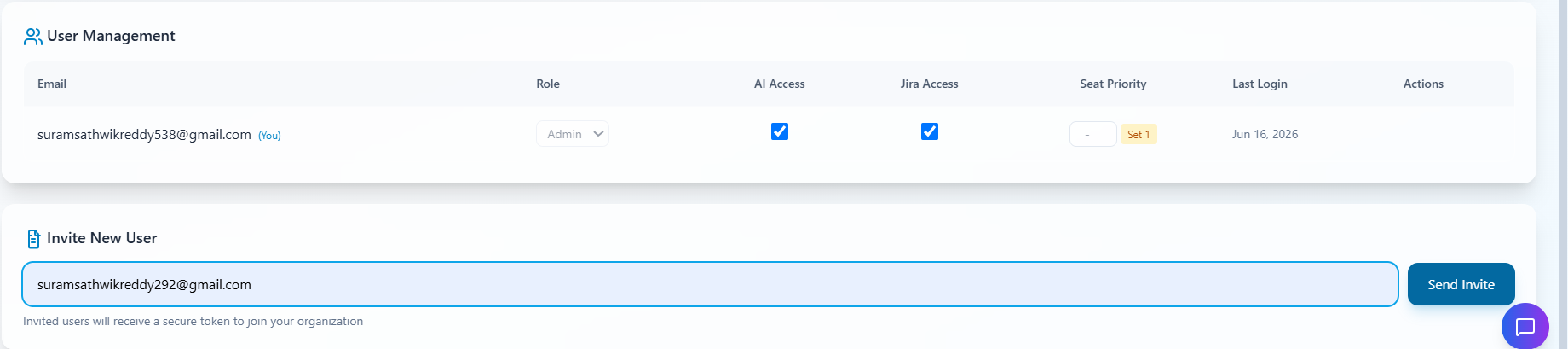
Click Invite Member and enter their email address. They'll receive an email with a link to join your organisation.
Roles available:User (standard team member), Admin (manage org, invite members, manage projects), and Super Admin (NirmIQ-side; not assigned by customer admins).
Seat limit: You can invite up to the number of seats in your plan (5 for Free)
Pending invitations count towards your seat total
Invite a teammate by email — they get a secure link to join
Seat limit reached?
If you've filled all 5 free seats and need more, you'll need to upgrade your plan — see Section 5 below.
4
Understand Plans & Tiers
Available Plans
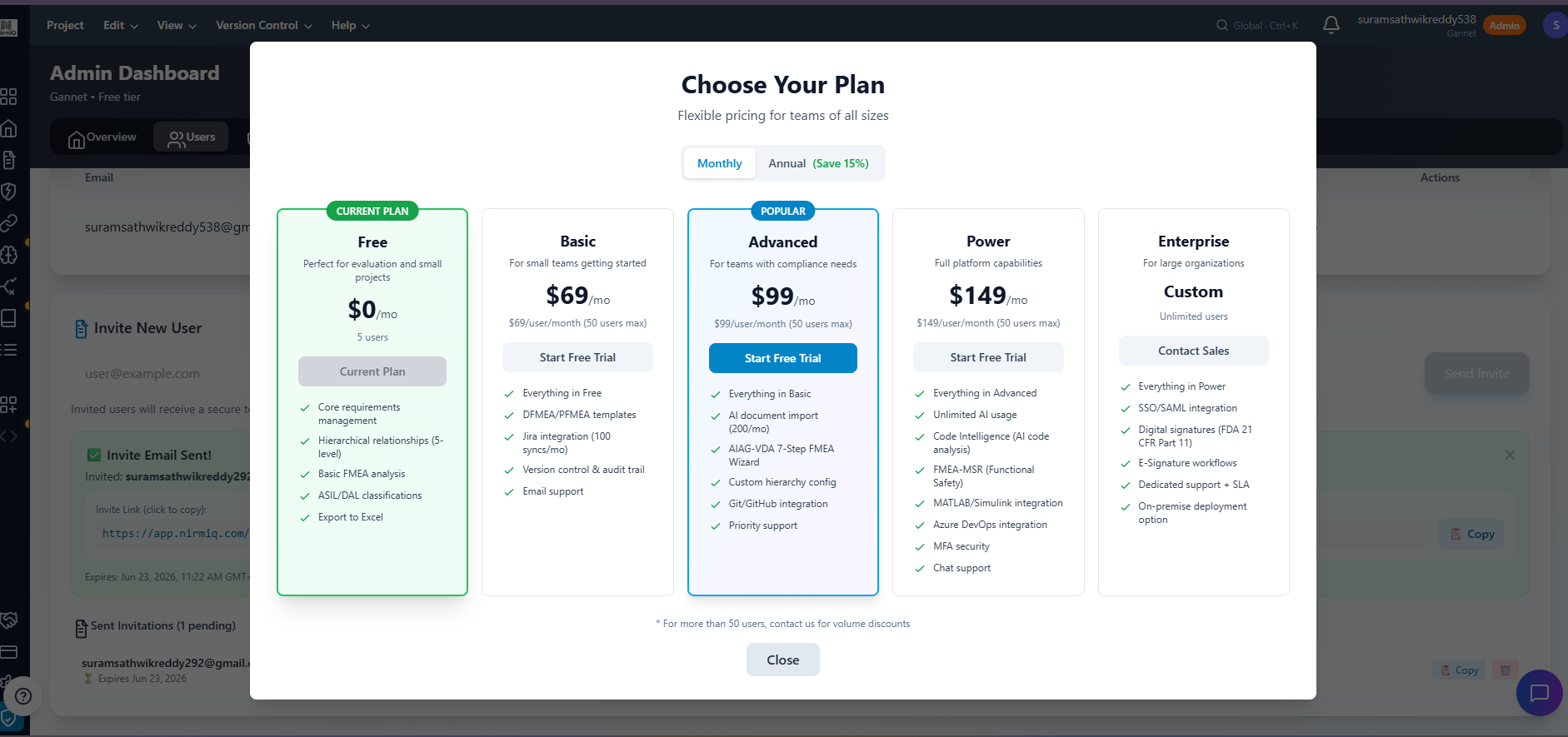
NirmIQ follows a license-based model — your tier determines which features you can access, and the number of licenses determines how many people can use them.
Everything in Power + SSO/SAML, IP whitelisting, multi-org management, named-rep dedicated support & SLA, custom training, cross-project risk patterns.
Code Intelligence Add-on
Per license min 3
Adds Code Intelligence (code scan, code analysis, code-to-requirements, code-to-FMEA, bidirectional sync) to any base plan including Free. Sold separately as a per-user add-on.
Plans & tiers — see what each unlocks before you upgrade
Tip — Tier vs. Seats
Your tier unlocks features. Your licenses (seat count) determine how many users can access the platform. They're independent — upgrading your tier doesn't automatically add seats, and adding seats doesn't change your tier.
5
Upgrade Your Organisation
Buy a Plan — In-App Self-Service
You can purchase and upgrade right inside NirmIQ — no waiting on email:
Open Billing from the sidebar (or click Upgrade anywhere you hit a tier-gated feature)
Choose your plan and number of licenses — the page shows monthly and annual pricing in your currency
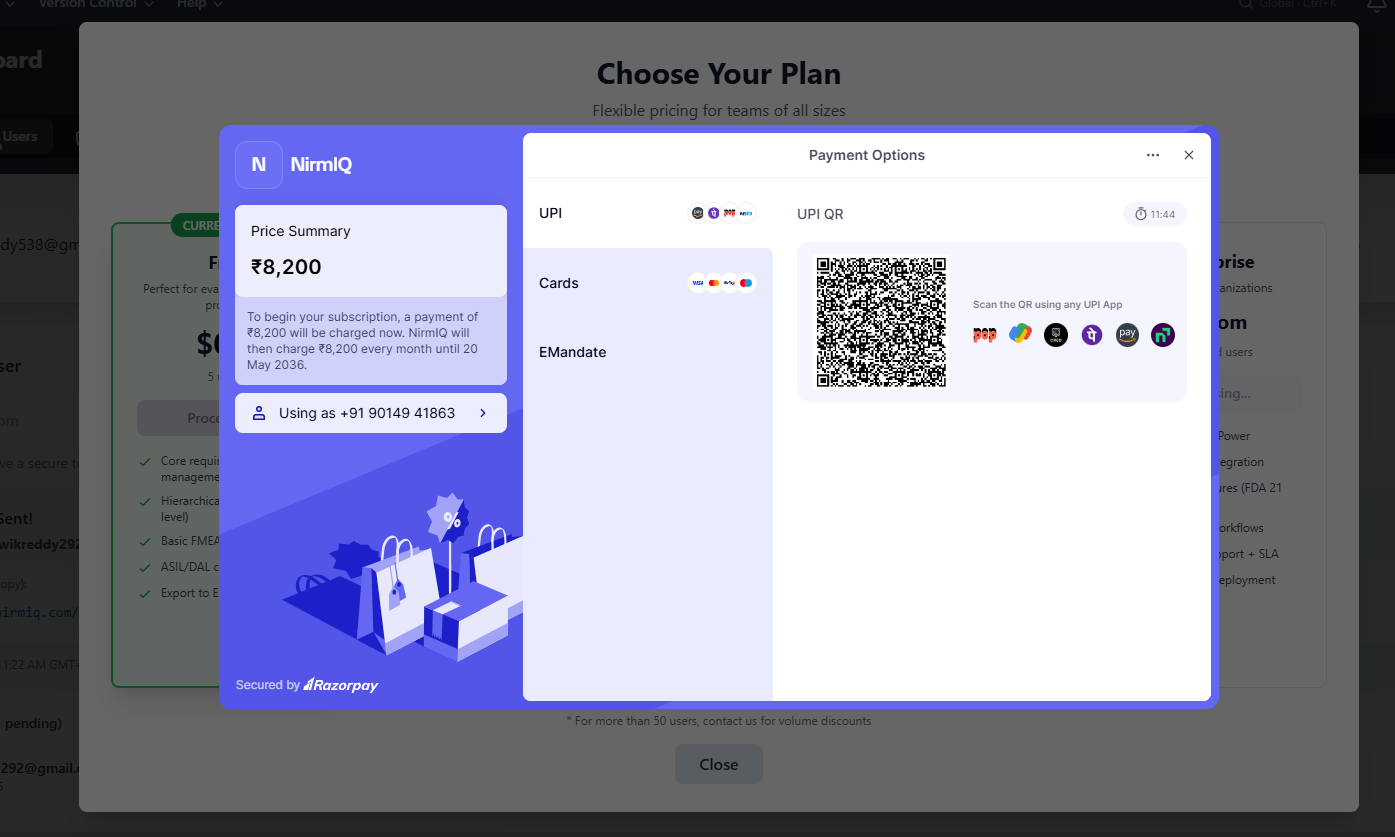
Pay securely — checkout is handled by our payment provider (cards, UPI, net-banking, and more)
Instant activation — the moment payment succeeds, your tier badge changes and the new features unlock across every project
Change plans anytime
Upgrade or change tiers from the same Billing page. If you start an upgrade and don't complete payment, your current plan stays exactly as it was — nothing changes until a payment succeeds.
Talk to Sales — Enterprise, Volume & Custom
For Enterprise plans (SSO/SAML, multi-org, dedicated support & SLA), large license volumes, purchase orders / invoicing, or help choosing the right tier, contact us:
Email info@nirmiq.com with your organisation name, the tier you're considering, and how many licenses you need
We'll set up the plan for your organisation and arrange invoicing where needed — usually within one business day
After Upgrading
Once upgraded, your organisation badge changes immediately and new features unlock across all your projects. You'll see the tier badge in your Organisation Settings, and your current plan, licenses, and payment history on the Billing page.
After upgrade — your tier badge changes and features unlock immediately
6
Request Beta / Early Access
What is Beta Access?
Beta access flips a flag on your organisation that unlocks features that would otherwise be gated by tier — independent of your current plan. It is intended for:
Evaluating NirmIQ's full capabilities before committing to a paid plan
Early adopters who want to shape the product with feedback
Pilot programmes within large organisations
What beta access does not change: seat counts, AI usage quotas, billing, or support SLAs. Beta access does not include the Code Intelligence add-on entitlements unless they were granted explicitly. Some workflow-level safeguards (for example, certain read-side permission checks) are independent of the tier check and are not bypassed by the beta flag.
Include your organisation name and a brief description of your use case
Our team will review and typically grant access within 1-2 business days
What you get with Beta Access
Tier-gated features (advanced FMEA, AI analysis, integrations) are unlocked through the standard tier check, with your existing seat count unchanged. Beta access does not add extra seats and does not by itself enable the Code Intelligence add-on.
7
Create Your First Project
The typical NirmIQ workflow. Steps A–D in this section cover the fastest path (Requirements → FMEA → Tests). Architecture, Work Items, and Analytics are picked up in Section 8 as you grow.
Step A — New Project
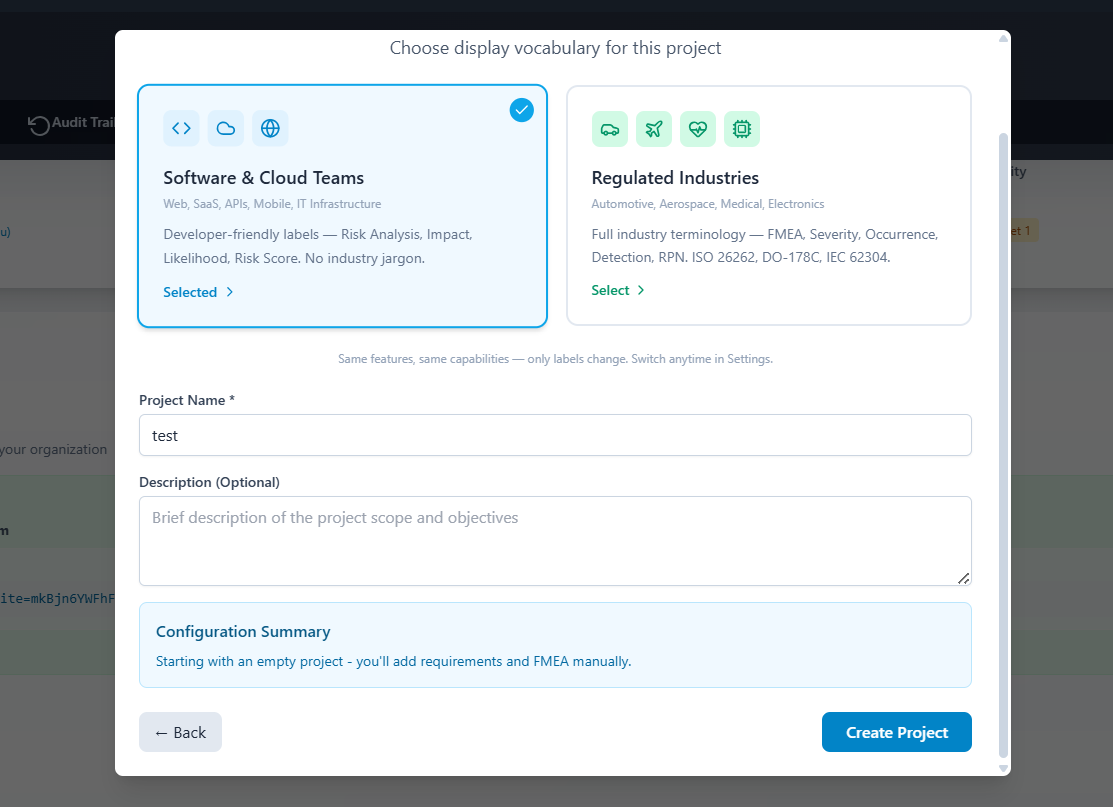
From the dashboard, click New Project. Give it a name, select a segment (Software or Safety), and optionally add a description.
Creating a new project — pick your segment to customise the vocabulary
Step B — Add Requirements
Once inside your project, go to the Requirements tab. You can:
Add manually — click "Add Requirement" for one-by-one entry
Import from file — upload a CSV, Excel, or ReqIF file
AI-assisted import — paste a Word/PDF/Excel document and let AI structure it (Advanced plan and above)
Requirements live in a parent-child hierarchy. A top-level system requirement decomposes into subsystem requirements, which decompose further into detailed requirements. Every requirement gets a stable custom ID (SYS-001, REQ-014, etc.) that stays with it forever, even if you re-order or promote children.
A three-level requirement hierarchy. Root is a system-level requirement; children decompose functionally. Custom IDs are stable — REQ-011 stays "REQ-011" even if you promote it to a different parent later.
Step C — Run FMEA Analysis
Navigate to the FMEA tab. NirmIQ supports both Simple FMEA (quick risk assessment) and Advanced FMEA (full AIAG-VDA 7-step process with structure trees, action items, and RPN tracking).
FMEA tab — Simple or full AIAG-VDA 7-Step risk analysis
DFMEA vs. PFMEA. A DFMEA analyses failure of a product design; a PFMEA analyses failure of a manufacturing process. Both use the same AIAG-VDA risk model (Severity × Occurrence × Detection = RPN, Action Priority = High/Medium/Low). The tabs available inside each analysis differ:
Process Flow — first tab on a PFMEA. Author a real AIAG-VDA process flow diagram with six shape types (Process, Operation, Storage, Inspection, Transport, Decision) and coloured edges (Yes / No / Rework). Drag from any side of a shape to connect. Add Op numbers on each step. Click Seed PFMEA rows to create one Worksheet row per step in one click; NirmIQ jumps you straight to the Worksheet so the new rows are visible. Export as PNG, PDF (A4 landscape) or JSON. Toolbar has Undo / Redo (three steps), Copy / Paste (Ctrl+C / Ctrl+V), and Fullscreen.
Worksheet — the full AIAG-VDA 4th-edition column set: Op No., Process Step, Product Function, Process Function, Failure Mode, Effect, Severity, Class (SC/CC/YC/OS/CT/HC classification), Cause, Prevention, Occurrence, Detection Controls, Detection, RPN, AP, Recommended Actions, Responsibility, Target Date, and the entire Action Results block (Action Taken, Effective Date, Revised S/O/D → Revised RPN). Every cell is inline-editable; dates use a date-picker; Class opens a dropdown with the standard AIAG labels.
Failure Modes / Structure Tree / Function Net / Failure Net — same across DFMEA + PFMEA, unchanged.
How the PFD connects to the Worksheet. The Op number on each PFD shape is the join key. Seed once, then edit the Worksheet freely. Renaming a step in the diagram and re-seeding skips rows whose Op number already exists — your worksheet edits are never overwritten.
The full PFMEA loop. Steps 1-3 happen once; steps 4-6 iterate as the process matures. Because Op numbers are the join key, adding a new step to the PFD and re-seeding never overwrites your worksheet edits.
Step D — Verify with Test Cases
Open the Test Cases tab to prove your requirements are met. Each test case has structured Steps and an Expected Result, can be assigned to an engineer and tagged, and links back to the requirement (and the FMEA risk) it covers.
Create a test case, or click AI Generate to draft tests from requirements and FMEA (Advanced plan and above)
Record runs — log a result (passed / failed / blocked / skipped) with notes; a run history is kept and the status updates automatically
Import / Export — bring tests in from CSV or Excel, or export to CSV, Excel, or a PDF test report
Track coverage — the dashboard shows pass rate and the status split; the Traceability view highlights anything untested
See the full guide in the Test Cases documentation for assignment, tags, version history, and bulk actions.
Tip — Software vs. Safety Segment
The segment you choose only changes labels and vocabulary (e.g., "Risk Analysis" vs. "FMEA", "Impact" vs. "Severity"). All features and capabilities are identical between segments.
8
Explore the Modules
Where to go next
Once your first project has requirements and an FMEA, these are the modules worth exploring. Open them from the left sidebar inside a project. (Some are unlocked at higher tiers — see Plans & Tiers above.)
Requirements — your hierarchical spec: add, import, baseline, and version requirements; track status through the review workflow.
Architecture — the product's structural breakdown: System → Subsystem → Component → Part. Every requirement can be allocated to one architecture element — that allocation is the direct evidence for ASPICE SYS.3 / SWE.2 / SWE.3 architecture practices. NirmIQ can also generate an FMEA Structure Tree from an architecture subtree in one click ("Build from Architecture"), keeping the design and analysis views in lock-step.
FMEA / Risk Analysis — Simple FMEA for quick risk scoring, or the full AIAG-VDA 7-Step wizard with structure trees, action items, and RPN tracking. PFMEA analyses have a first-class Process Flow Diagram tab (six AIAG shape types, decision branches, rework loops, PNG / PDF export) and a full 22-column Worksheet matching the AIAG-VDA 4th Edition template. Advanced for the 7-step wizard.
Test Cases — prove requirements are met; record runs, track pass rate and coverage (see Section 7, Step D).
Traceability — see how requirements connect to FMEA, tests, and work items; spot anything untested or unlinked at a glance.
Analytics — dashboards for risk distribution, coverage, top risks, and compliance readiness (including ASPICE).
Work Items & Sprints — turn accepted requirements into work, plan sprints, and track velocity, burndown, and team progress in Insights.
Collaboration — comments, @mentions, and notifications keep your team aligned without leaving the requirement. Professional+
Integrations — connect Jira, Slack, and Git so NirmIQ fits your existing workflow. Advanced+
Knowledge Bank & Knowledge Base — reuse proven failure modes and capture lessons learned, standards, and decisions for your team.
Code Intelligence — link code to requirements and FMEA, scan a repository, and generate requirements or failure modes from code. Power or the Code Intelligence add-on.
Tip — Start with a sample
Not sure where to begin? Open one of the five read-only sample projects (Section 2) and click through these modules with real data before building your own.